Showing posts with label Workflos MS Dynamics AX. Show all posts

Sunday, 3 July 2016

Warehouse Management : Disposition Codes & Inventory Statuses in Inbound Process

Disposition Codes in Microsoft Dynamics AX 2012 Warehouse Management allows to put correct inventory status for tracking purposes. At the time of receiving disposition codes can be used to track inventory for 

  1. Available
  2. Damaged
  3. Expired
Inventory status can be setup to be blocked or available for use. To setup inventory status navigate to Warehouse management > Setup > Inventory > Inventory Status


To setup disposition codes navigate to Warehouse Management > Setup > Mobile Device > Disposition Codes


To allows warehouse users to enter disposition codes at the time or receiving - enable all inbound processes to input disposition codes. To enable these processes navigate to Warehouse Management > Setup > Mobile Device > Mobile Device Menu Items and select relevant menu item


Now create one purchase order and receive it via Mobile Portal you will see users will now to be able to select disposition code at the time of Purchase Order receiving


Once received inventory is stored with different inventory statuses. Users can also see what inventory statuses were selected at the time of transaction. 


Inventory status other then available are not available for sales order transaction ensuring wrong inventories are not selected by the sales staff during sales order processing. 

Mustafa Chohan

Warehouse Management : Disposition Codes & Inventory Statuses in Inbound Process

Disposition Codes in Microsoft Dynamics AX 2012 Warehouse Management allows to put correct inventory status for tracking purposes. At the time of receiving disposition codes can be used to track inventory for 

  1. Available
  2. Damaged
  3. Expired
Inventory status can be setup to be blocked or available for use. To setup inventory status navigate to Warehouse management > Setup > Inventory > Inventory Status


To setup disposition codes navigate to Warehouse Management > Setup > Mobile Device > Disposition Codes


To allows warehouse users to enter disposition codes at the time or receiving - enable all inbound processes to input disposition codes. To enable these processes navigate to Warehouse Management > Setup > Mobile Device > Mobile Device Menu Items and select relevant menu item


Now create one purchase order and receive it via Mobile Portal you will see users will now to be able to select disposition code at the time of Purchase Order receiving


Once received inventory is stored with different inventory statuses. Users can also see what inventory statuses were selected at the time of transaction. 


Inventory status other then available are not available for sales order transaction ensuring wrong inventories are not selected by the sales staff during sales order processing. 

Mustafa Chohan

Saturday, 1 December 2012

MS Dynamics AX 2012 Simple Purchase Order Workflow Walkthrough

Assalam O Alikum Guys,

Today we are going to see a simple workflow available in MS Dynamics AX 2012, also what basic setups must be done before configuring any of the workflow available in modules. 

Number Sequence

In System Administration > Setup > System Parameters > Number Sequence set the number sequence for Workflow ID


Batch Groups
  1. Navigate to System Administration > Setups > Batch Group
  2. Create three batch groups 
  3. DUEDATE, MSGPRO, & LINEITEM
  4. Make sure select appropriate Batch servers for the batch groups.

Workflow Infrastructure Configuration Wizard 
  1. Navigate to Workflow Infrastructure Configuration through System Administration > Setup > Work flow
  2. In this wizard you are required to provide batch groups we created in first setup
  3. Click Next
  4. Select MSGPRO and Click Next
  5. Select DUEDATE | Set hours (1 For Due Date) and Click Next 
  6. Select LINEITEM | Set Minutes (1 For Lineitem Work Flow) and Click Next 
  7. Click Finish [ See Screen Snap Below ]
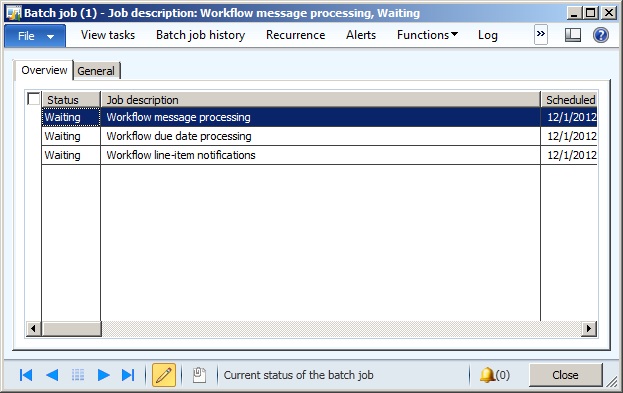
  8. You can confirm that batches are waiting for execution by Inquiring Batch Jobs
  9. Navigate to System Administration > Inquiries > Batch Jobs [ See Screen Snap Below ]


Example Workflow Purchase Order Approval

We are going to create a new Purchase Order Approval Workflow, Specially for Purchase Workflow we need to Activate Change Management at Procurement & Sourcing > Setup > Procurement & Sourcing Parameters > General
  1. Navigate to Procurement & Sourcing > Setup > Procurement & Sourcing Workflows
  2. Click New, Select Purchase Order Workflow and Click Create Workflow
  3. From the left hand side pan (WorkFlow elements), drag/drop Approve Purchase Order element to main workflow screen
  4. Click properties on Top Pan
  5. Select on which events Notifications should be sent
  6. Double click the  Approve Purchase Order element
  7. Click Step 1, Click Assignment on Top Pan
  8. Click User on Selection
  9. Click User Tab
  10. Add user [ Better create another user for approval ]
  11. Click Basic Settings
  12. Enter Subject and Message for Workflow
  13. Click Save and Close
  14. Click Ok
  15. Activate the Version, Click Ok
You have created the basic workflow.